From updates to backup chargers, preparing your remote work setup for travel will help you avoid stress and stay focused on the job
When planning to work remotely overseas, it’s easy to get caught up in the exciting parts – booking flights, finding accommodation, and imagining your new routine. Meanwhile, work technology often slips to the bottom of the list, only becoming a priority when something goes wrong (and it most certainly can).
Taking time to prepare your tech before you leave can save a lot of stress. It helps you stay productive while abroad and makes settling into your new surroundings much smoother, without the frustration of unexpected technical hiccups.
Start with what you use
Before diving into apps and settings, take stock of what you actually rely on every day to do your job effectively. Make sure you’re packing the essentials:
- Laptop and charger
- Mouse or trackpad (if that’s what you prefer)
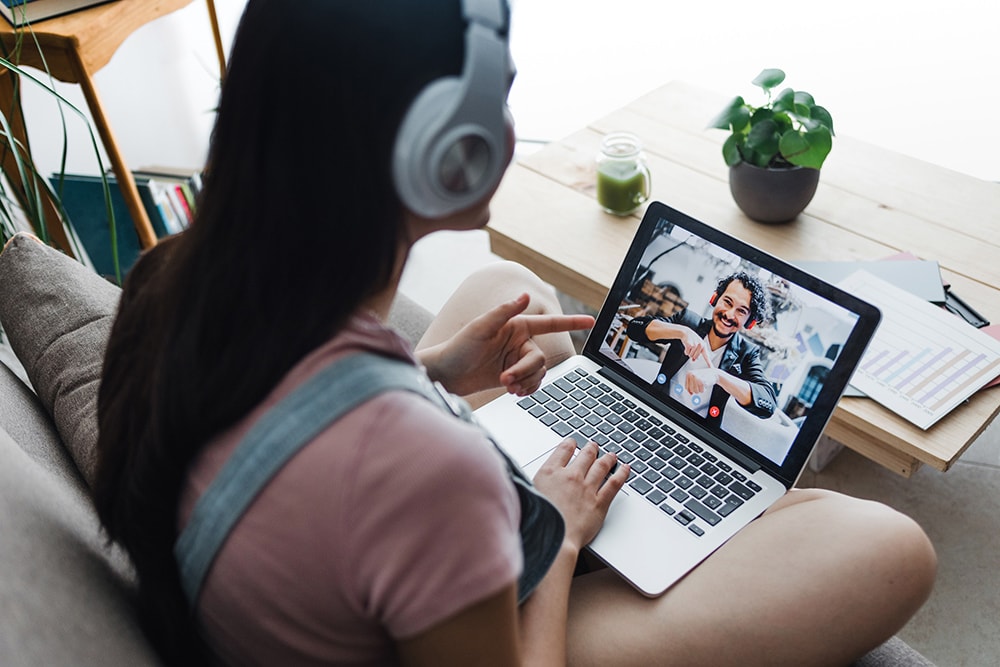
- Headphones for calls while on the move
- A backup charger or power adapter
- Any external hardware authentication devices, like YubiKey
Just like tech tends to fail at the worst times at home, the same thing can happen abroad. And depending on the type of connector you use, finding a replacement charger or cable in another country might be trickier than you’d expect.
Update everything before you travel
Just as with everything else, you’ll have software updates while travelling, and in many cases, they seem to come at the most inconvenient times.
Doing your updates beforehand reduces the chance of needing to install them later on a slow or unreliable internet connection. Regularly update your computer’s operating system, web browser, and any other programme or tool you use in connection with your day-to-day work.
This encompasses both communications platforms, cloud-based storage applications, and security software. Once these are all updated, restart your device and confirm that all programmes function properly.
Check that you can log in to your accounts
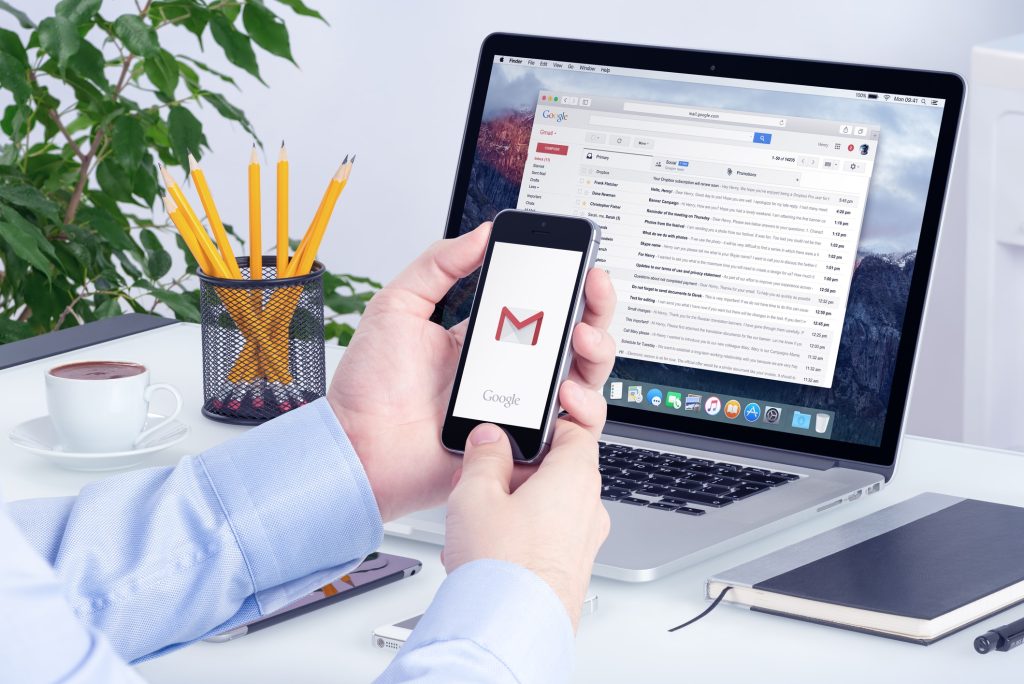
Several services have different behaviours when you access them from outside your country. Login processes, security methods, and geographical restrictions can impede your productivity unexpectedly. Before travelling, ensure that you can log in to:
- Your email and work-related logins
- Cloud-based storage and shared folders
- Communications tools – text/chat and video calling
If any of the above services are critical to your job, take the time to think about how you’ll be able to access those services when connected to an unknown or shared network.
Plan for unfamiliar internet connections
When you’re overseas, you’ll rarely have the same level of control over internet connections as you do at home. Networks are often shared, restricted or unreliable at certain times of day. Download key files for offline access and make sure important documents sync automatically once a connection is available.
If your work relies on video calls, test your setup on a slower connection before travelling. Many remote workers also use security tools, such as a VPN app for Windows, to encrypt their connection and feel more comfortable on shared or unfamiliar networks.
It’s also helpful to identify a nearby backup location, like a café, library, or co-working space, in case your accommodation’s internet isn’t quite reliable enough for heavier-duty things like video calls.
Organise your files and clean up your device
If you’re travelling with an unorganised laptop, it can be a hassle to manage. Taking some time to organise your files prior to your trip will reduce your stress levels and make your daily work easier. Before you leave, you should take a few minutes to:
- Delete any unneeded files
- Create individual folders for every document so that you know where they are
- Move large files from your computer to cloud storage if space is limited
By organising your laptop before your trip, you eliminate a lot of potential stress when trying to work remotely while simultaneously adjusting to a new and potentially more demanding environment.
Comfort and ergonomics
Working remotely means paying attention to more than just staying connected to the internet. Comfort matters too, even when you’re working from a temporary setup.
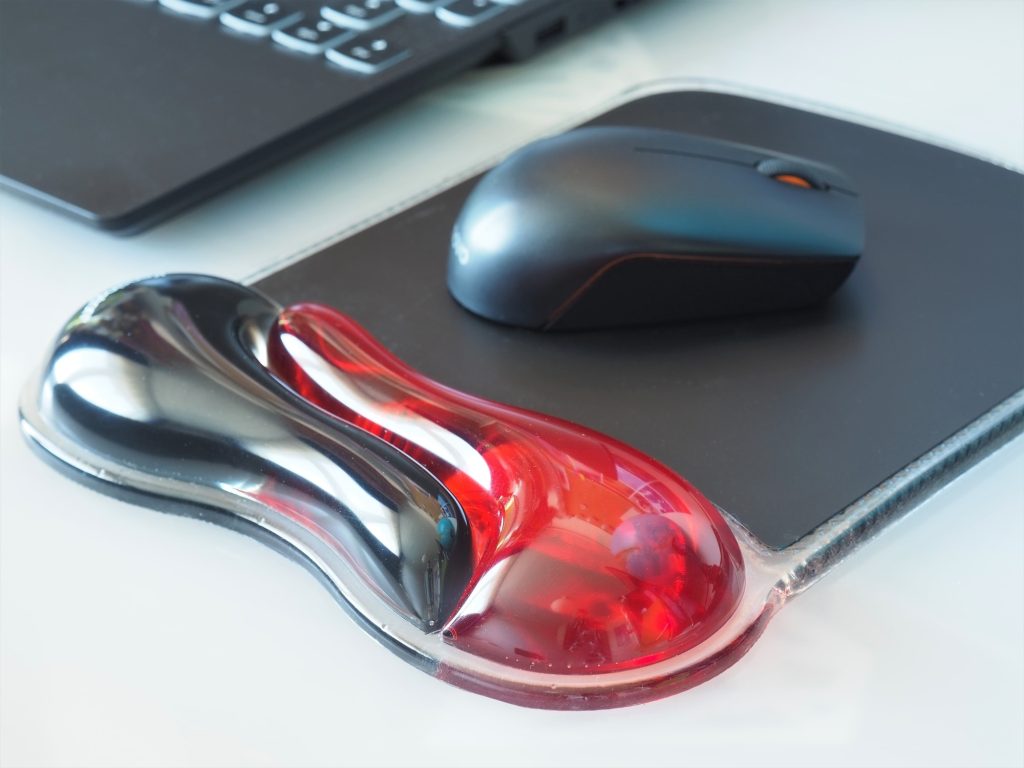
To maximise comfort, there are several small adjustments you can try, such as:
- A portable laptop stand (there are small ones specifically designed for travel)
- A compact keyboard and/or mouse
- A pair of noise-cancelling headphones
You don’t have to have a perfect work environment; however, making small enhancements to your support systems will reduce the overall strain on your body and help you stay focused on performing.
Do a test run
Spend a workday working as if you’re at home, using only the tools that you’re going to take with you on your trip. By doing this, you’ll discover any potential issues, such as lost or forgotten passwords, outdated applications, and misplaced accessories.
It’s far less stressful to fix small issues when you work from home than it would be to troubleshoot them when you’re in a hotel room or on a holiday rental.
Give yourself time to get settled
Even with careful preparation, there will still be bumps along the way. Build time into your plans to settle in properly, avoid scheduling meetings on your very first day, and give yourself space to test your connections before starting work.
While preparing won’t remove every challenge, setting up a reliable work system before you travel can help you feel more comfortable and in control. When your environment keeps changing, this makes it easier to focus on your work while still enjoying the travel side of remote life.
This article was written by a guest contributor.
Enjoyed this post? pin it for later…